 SlapMac
Guides
How to protect your MacBook from theft in a café
By Tonnoz4 min read
The best protection is boring. Don't leave your MacBook alone, even for a minute, and set it up so that if it does walk off, it's useless to whoever took it and you can see where it went. That takes about five minutes of settings. An alarm on top is a nice deterrent, but it comes after the basics, not instead of them.
The settings to check before you leave the house
These are all built into macOS and free. If you only do one thing from this post, do these.
Turn on Find My Mac. The menus have moved around between macOS versions, so the fastest way is to open System Settings and type "Find My" in the search field. With Find My on, you can see your Mac on a map, play a sound on it and lock it remotely. On Apple silicon Macs it also turns on Activation Lock, which means a thief can't erase your Mac and set it up as their own without your Apple Account password.
Make sure FileVault is on. System Settings, then Privacy & Security, then FileVault. It ties the encryption of your disk to your login password, so nobody can pull your files off the Mac without it. Newer Macs offer to turn it on during setup, but it's worth checking.
Lock the screen the moment it sleeps. In System Settings, open Lock Screen and set "Require password after screen saver begins or display is turned off" to Immediately.
Learn the lock shortcut. Control, Command and Q locks your Mac instantly. Make it a reflex every time you stand up, the same way you'd pocket your phone.
Add a lock screen message. Also under Lock Screen, "Show message when locked" lets you put an email address or phone number on the login screen. If an honest person finds your Mac, now they know who to call.
Write down your serial number. Apple menu, then About This Mac. Keep it somewhere that isn't the Mac. If you ever have to file a police report or an insurance claim, you'll need it.
Habits that keep it on your table
It takes a few seconds to pick up a laptop and walk out of a café. Ordering a second coffee takes longer. So:
- Take it with you, or at least close it and put it in your bag, when you go to the counter or the bathroom.
- Sit with your back to a wall, and keep the laptop away from the aisle and the door.
- Keep the charger plugged in near you rather than across the room. A cable stretched over a walkway is an easy excuse for someone to grab and go.
- Asking the person at the next table to keep an eye on it works more often than you'd think. But they're a stranger, and they'll be looking at their own screen.
Modern MacBooks don't have the little lock slot older laptops had. Third-party lock adapters exist that clamp onto the case, if you work somewhere you really can't take your laptop everywhere.
Add an alarm that makes a scene
This is the part SlapMac can help with. Its Anti-Theft mode uses the motion sensor inside your MacBook (the same one it uses to feel slaps) to notice when someone moves it.
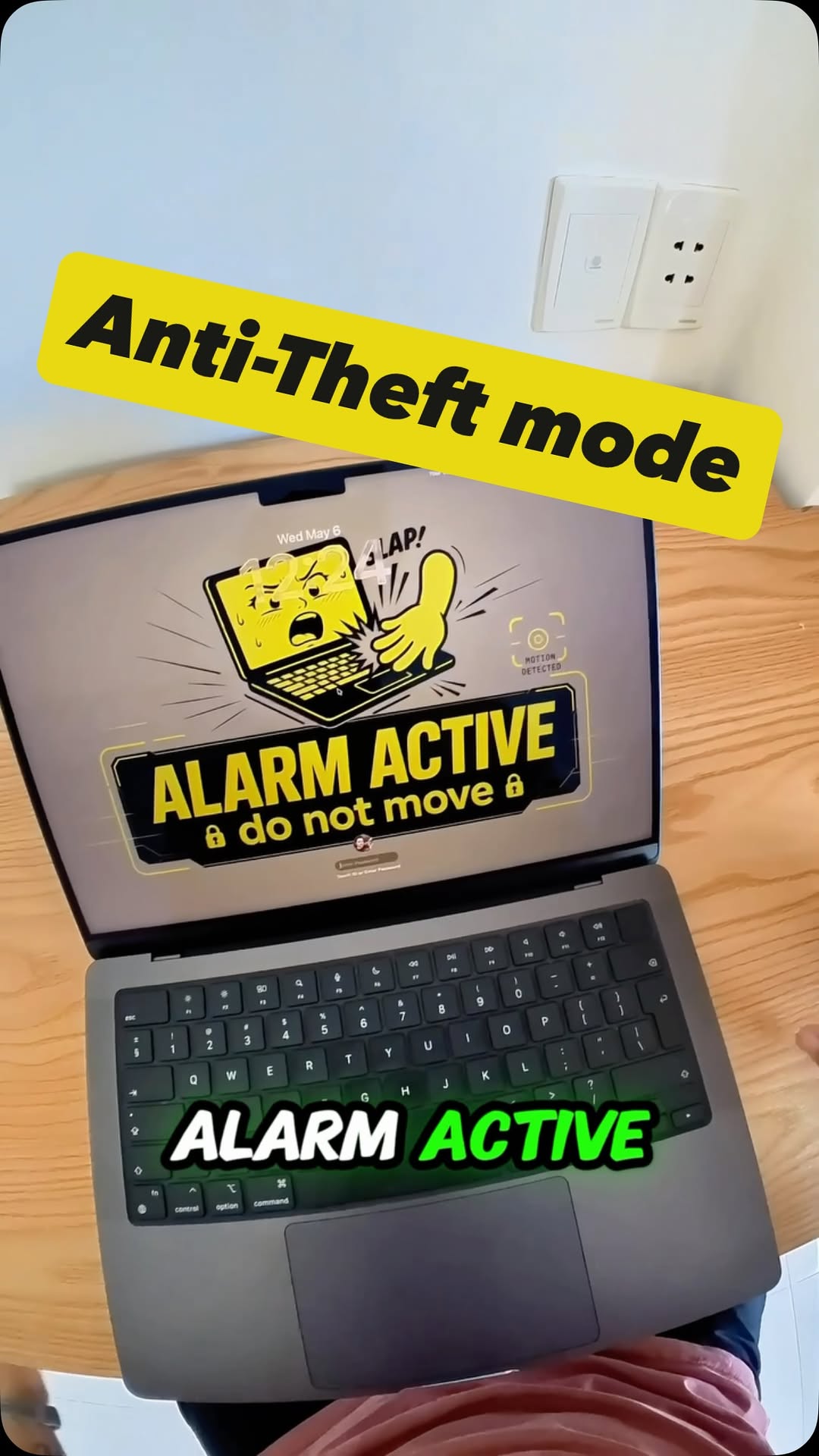
Here's how it works:
- Turn on Anti-Theft from SlapMac's menu bar icon. It's independent of slap mode, so you can have either or both.
- Lock your screen. The alarm arms itself after a delay you choose, so you have time to walk away without setting it off yourself.
- If someone moves the Mac or opens the lid, it plays a loud siren straight away. There are three to choose from.
- It takes a photo of whoever moved it, which we call the Selfie of Shame. Photos are saved in
~/Pictures/SlapMac/Intruders/, and you can sync them to iCloud Drive so you still have them if the laptop is gone. - Only Touch ID or your password stops it.
There's a sensitivity slider, so a waiter bumping the table doesn't set off a siren in the middle of a quiet café.
To be honest about what an alarm can do: it won't stop someone determined from running off with a screaming laptop. What it does is make that a lot less appealing. A MacBook howling in someone's arms gets every head in the room turning, which is the last thing a thief wants. Use it as an extra layer on top of Find My, not a replacement for it.
If your MacBook gets stolen anyway
- Mark it as lost. Open the Find My app on your iPhone or go to iCloud.com/find, select your Mac and use Mark As Lost. It locks the Mac and shows your message on the screen.
- Don't go after it yourself. Report it to the police with the serial number you wrote down, and give them the location from Find My if it shows one.
- Check for an intruder photo. If you had SlapMac's Anti-Theft on with iCloud Drive sync, look in that folder from another device.
- Change your important passwords from another device if the Mac was unlocked when it was taken: your Apple Account, email and banking first.
- Erase it remotely last, once you've given up on getting it back. Activation Lock stays on after an erase, so it's still worthless to the thief.